1. Traveloka TERA is the accommodation partner extranet, not the guest booking account.
2. Open tera.traveloka.com/login/ and use the email registered for your property's partner account.
3. If access fails, check the account details and follow the password-reset or verification instructions shown.
4. New partners create an account and submit property information before Traveloka reviews the listing for activation.
Traveloka TERA, short for Traveloka Extranet Reservation System, is the workspace accommodation partners use to manage their Traveloka listing, reservations, rates, and room availability. For a hotel, B&B, villa, or apartment operator, the first task is usually straightforward: access the right property account and check what needs attention.
This independent guide explains the Traveloka TERA login and registration process. It is not a Traveloka sign-in page.
Traveloka TERA Login for Property Partners
Use the partner login address `tera.traveloka.com/login/`. Check the domain before entering your password, particularly if you reached the page through a search result or an email.
- Open the TERA partner login page in your browser.
- Enter the email registered for your property's Traveloka partner account.
- Enter your password, checking capitalization and accidental spaces.
- Select the login button and complete any additional verification shown on your screen.
- Check that the property displayed is the one you intend to manage before changing rates or availability.
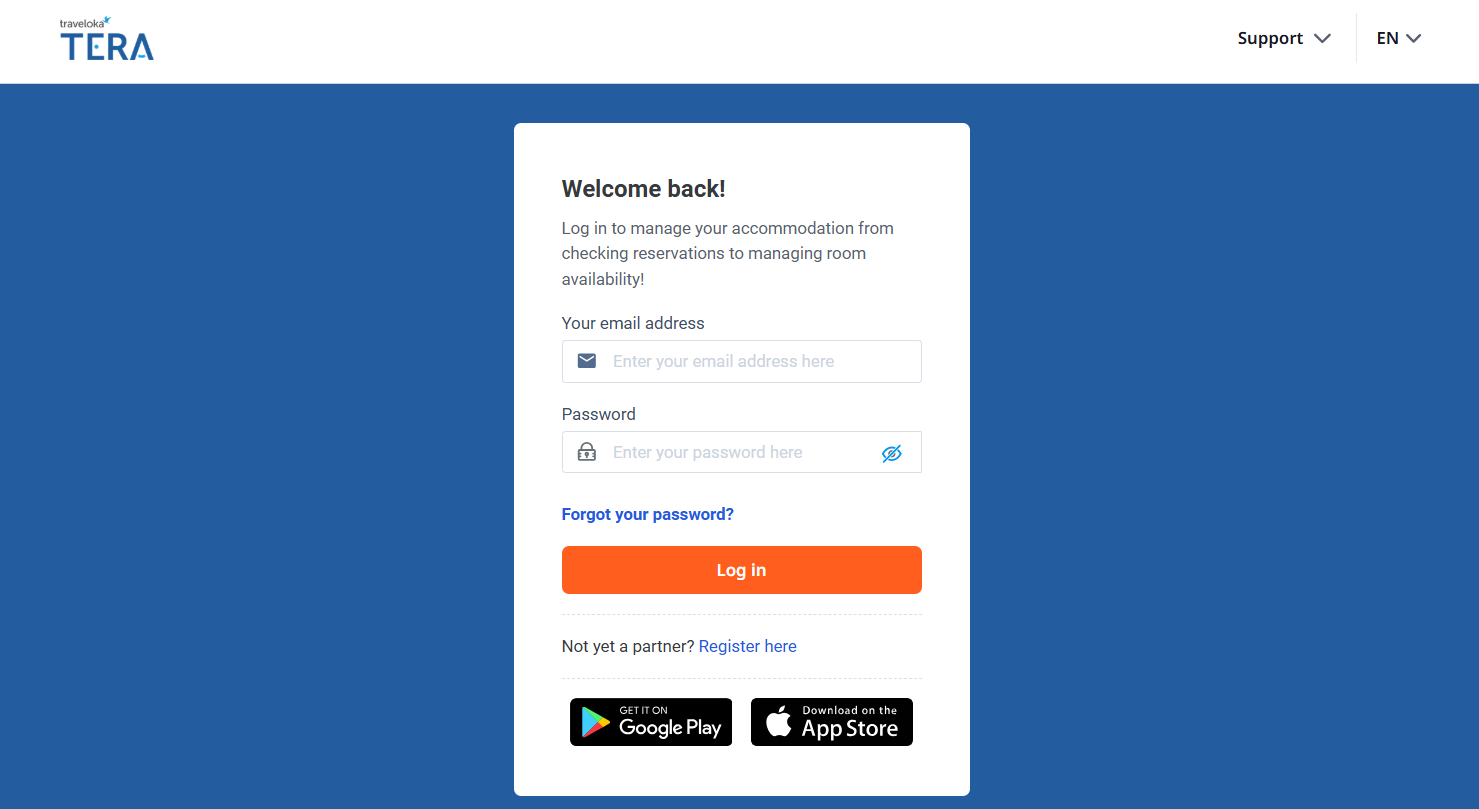
An existing property may already have an account managed by its owner, reservations team, or another administrator. Ask that person to confirm your access rather than creating another property listing because your own email does not work.
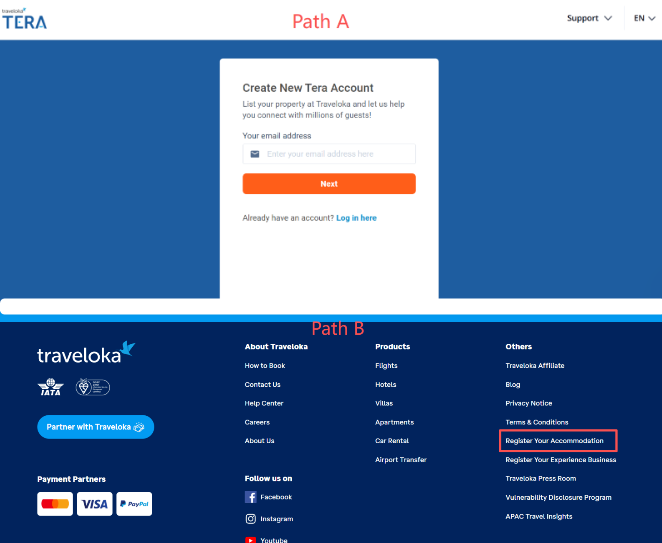
The screenshots in this guide show the existing login and registration flow. Labels and screen layouts may differ by language or change over time; follow the instructions displayed in your current account.
Cannot Log In? Check These Account Issues
The email or password is incorrect
Confirm that you are using a partner account rather than a guest account. Check the email spelling, keyboard language, Caps Lock, and any saved password that your browser fills in. If the same details still fail, use the password-reset option instead of repeatedly guessing.
You forgot the password
Select Forgot your password? on the login page, enter the email associated with your TERA account, and request the instructions. Open the reset email and follow its link to create a new password. Then return to the partner login page and sign in again.
If the email does not arrive, check spam folders and confirm that you requested it for the registered address. If that mailbox belongs to a former employee or is no longer accessible, contact your property account administrator or assigned Traveloka Market Manager for help recovering access.
A reset or verification step fails
Follow the verification method offered on your screen; do not assume every account has the same email or SMS options. Traveloka's help guidance gives a specific instruction for a system-recovery message during password reset: wait 30 minutes and try again. If that retry fails or the reset email still does not arrive, contact your assigned Market Manager.
That instruction is not a promise that every locked account will automatically reopen after 30 minutes. If Traveloka flags abnormal activity, follow the password-reset instructions and seek support if access remains blocked.
You can log in but cannot manage the property
Account access, staff permissions, and property activation are separate issues. Ask the property administrator to check your access if the relevant property or controls are missing. If the listing is awaiting review or is not live, check its onboarding status with Traveloka rather than treating it as a password problem.
Once access is restored, repeated calendar checks can become the next problem for a small team selling rooms on several OTAs. Smart Order directly connects with Traveloka and brings connected reservations into the PMS calendar, helping staff manage bookings and corresponding room availability alongside other supported channels. Confirm your room setup and supported updates during onboarding.
Manage Traveloka Alongside Your Hotel Calendar
Create a Smart Order account to bring your property's daily reservation work into one PMS workspace.
How to Register a Property on Traveloka
If your property is not already registered, start from the accommodation partner registration page at `tera.traveloka.com/partner/`. Creating an account and getting a property approved for sale are different stages: an account alone does not mean guests can book your rooms.
Prepare the property information
Have the information needed to describe the accommodation, verify the business, and set up its commercial details. Traveloka's registration guidance lists identity, banking, and hotel business documents, but the exact requirements depend on the property and location. Prepare:
- The property name, address, accommodation type, and responsible contact details.
- Room types, guest capacity, facilities, and clear property and room photos.
- Opening rates, available room quantities, and booking policies.
- Identity documents and any business licence required for your property.
- Bank account details and supporting bank records requested by Traveloka.
Use the requirements in the current form for photo specifications and local documents. Do not assume that another country's tax or business-registration checklist applies to your property.
Create the account and submit the listing
- Choose the accommodation registration option and enter the requested account details.
- Follow the email-verification instructions sent to the address you provided.
- Complete the property profile, room details, photos, and requested documents.
- Review rates, availability, policies, and the proposed commercial terms with Traveloka during validation.
- Complete any requested corrections and confirm the listing's activation status before expecting reservations.
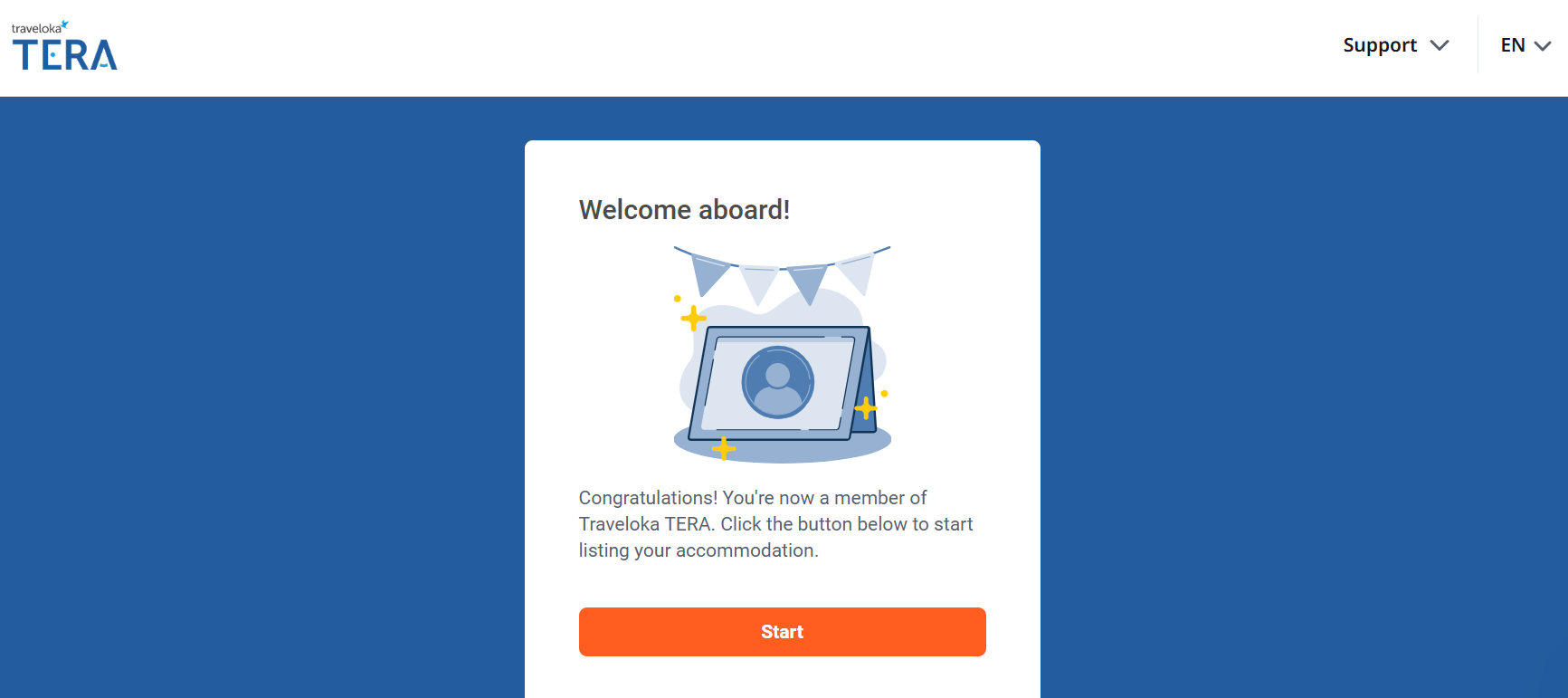
Traveloka's published onboarding process includes follow-up by a Market Manager to validate property information. There is no universal approval time established for every property in this guide. Plan around the review and information requests shown for your application, rather than assuming the hotel will be live within a fixed number of days.
Registration itself is described as having no additional registration fee in Traveloka's partner guidance. Booking commissions and other commercial obligations are separate: review the agreement applicable to your property before accepting it.
What to Check After Your First Login
The property and room details
Confirm the property address, contact information, room names, occupancy limits, facilities, and photos. Similar room names can confuse both guests and staff, so make sure each listing describes the room being sold.
Rates, availability, and booking policies
Check a few near-term dates and at least one busier period. Confirm the available quantities and guest-facing offer, including meal inclusions, cancellation conditions, and payment terms. Reopen the calendar after saving changes and check the offer guests can see where available.
Reservations and staff access
Review upcoming arrivals and make sure the staff handling bookings can access the relevant property. Agree who checks new reservations, changes, and cancellations so that a shift change does not leave a booking unattended.
The official TERA partner app is available for Android and iPhone. It offers mobile access to reservation and property-management tasks, but the actions available to an individual staff member depend on their permissions and the current interface.
Managing Traveloka Alongside Other Booking Channels
TERA remains the place to manage the Traveloka partner account. A connected PMS and channel manager serve a different purpose: coordinating reservation work and supported room updates across the channels your property uses.
For example, when Traveloka and another OTA sell the same room inventory, the front desk needs both bookings reflected in its operating calendar. Smart Order combines the PMS with a hotel channel manager, including its direct Traveloka connection, so staff can work from a shared reservation record rather than repeatedly copying bookings between calendars.
During setup, confirm which system your team will use to change rates and availability. Check that the Traveloka room types correspond to the correct rooms in the PMS, then verify a small set of dates and offers before relying on the connection for daily sales. Keep checking warnings and exceptions: a connection reduces manual work but does not eliminate every overbooking risk.
Frequently Asked Questions
Is Traveloka TERA the same as a Traveloka guest account?
No. TERA is for accommodation partners managing their property on Traveloka. A guest account is for travellers managing their own bookings. Use the partner login and the email registered for your property account.
Can I access TERA before my property goes live?
Creating an account is part of onboarding, while listing activation follows property-information submission and review. Being able to log in does not by itself confirm that your rooms are available for guests to book.
What if the registered email belongs to a former employee?
Contact your property administrator or assigned Traveloka Market Manager. Explain that the property has lost access to its registered mailbox and ask for the account-recovery process. Do not create a duplicate listing as a workaround.
Can I manage Traveloka TERA on my phone?
Yes, official TERA partner apps are available for Android and iPhone. Use the official app listing and your partner account. For any task you cannot complete in the app, check the web interface and your permissions.
Does Smart Order replace my TERA login?
No. Smart Order's direct Traveloka connection supports connected reservation and room-management work. Keep access to TERA for partner-account administration, listing checks, and tasks that still need to be completed with Traveloka.
