Create A Reservation and Manually Edit the Reservation Details

Overview

As you have connected to OTA channels, all the reservations will be recorded automatically from the channels. However, you may still have some walk-in reservations or edit some information on them.

Create A New Reservation:

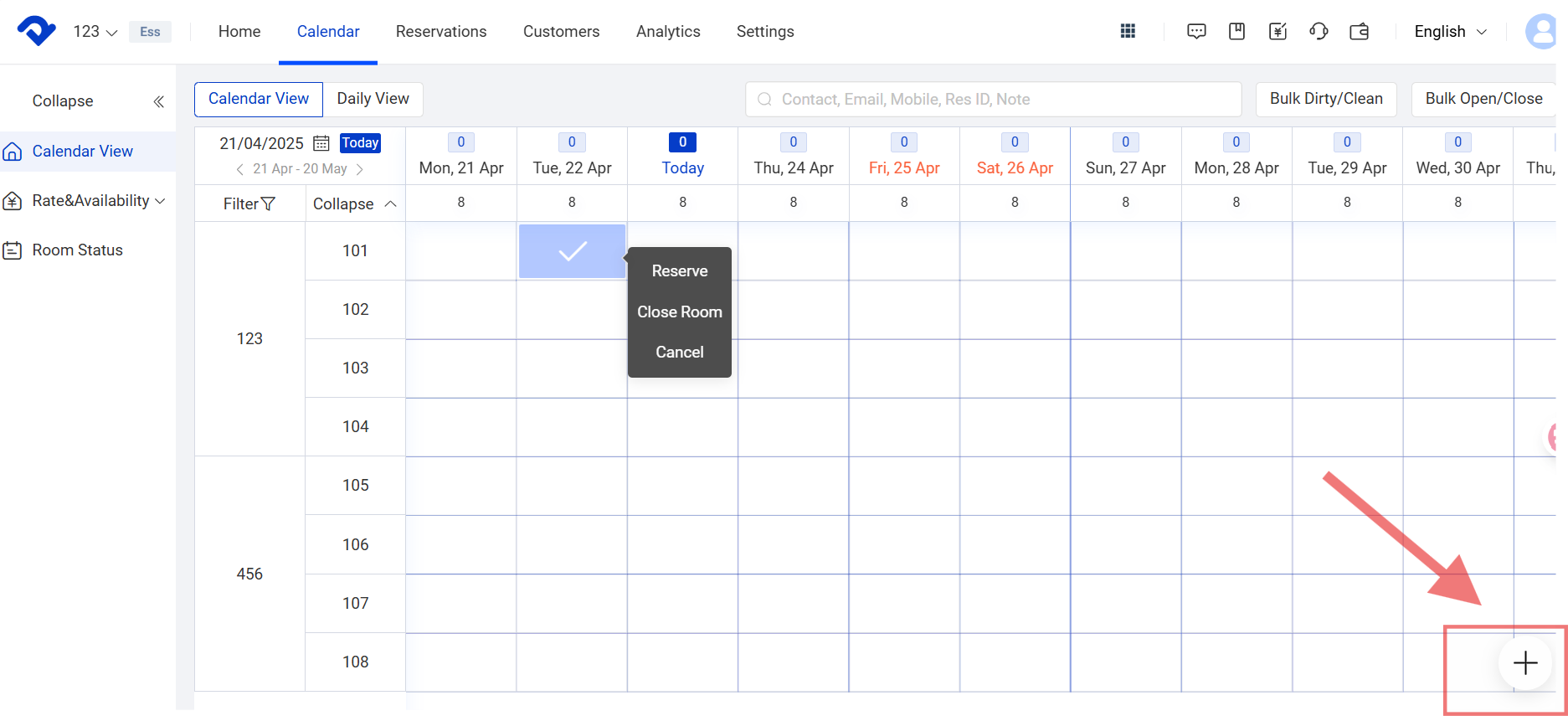
Way1: Go to the Calendar page and select Calendar View. Click the room and select Reserve.
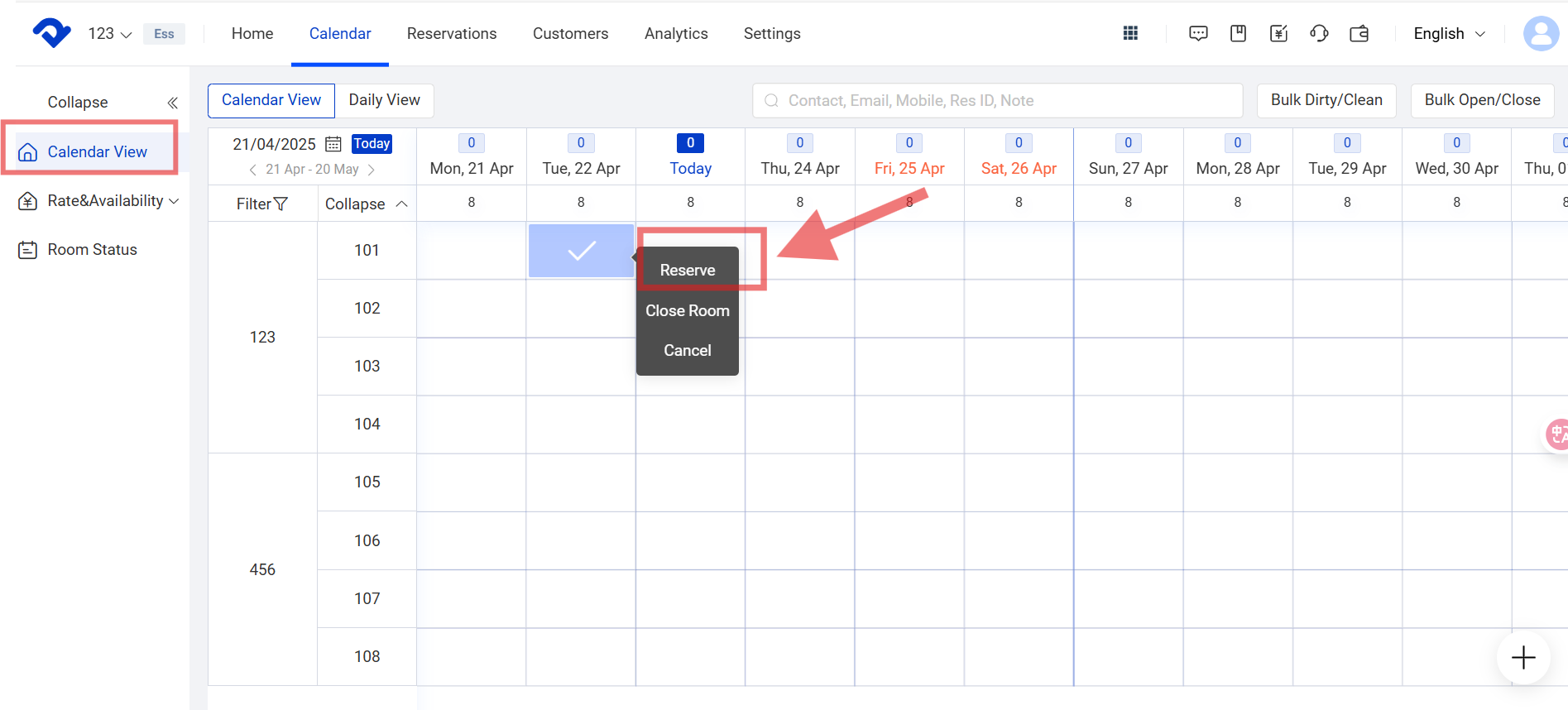
Reserve

Once you finish filling in the Basic information and Accommodation, click Reserve.
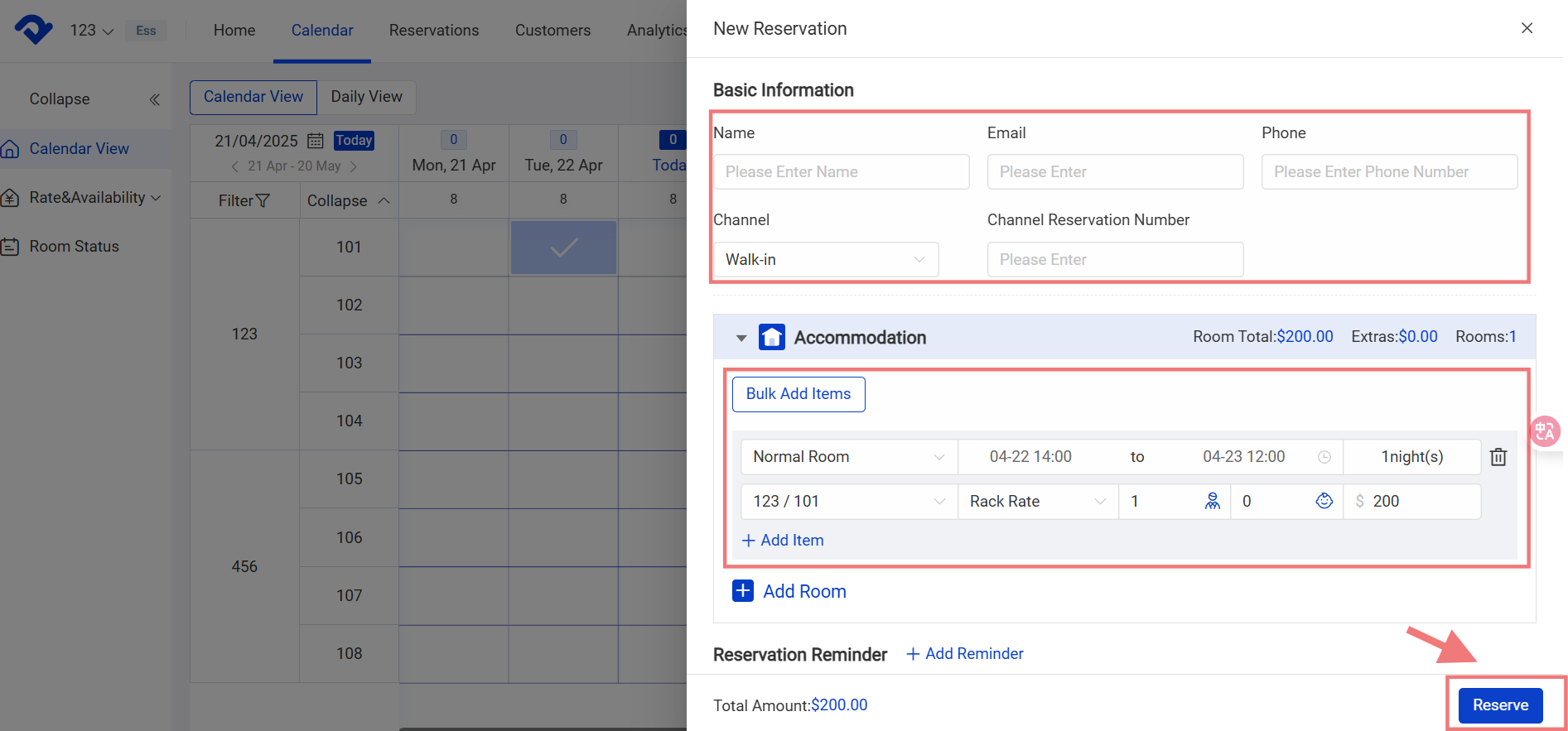
Basic information and Accommodation

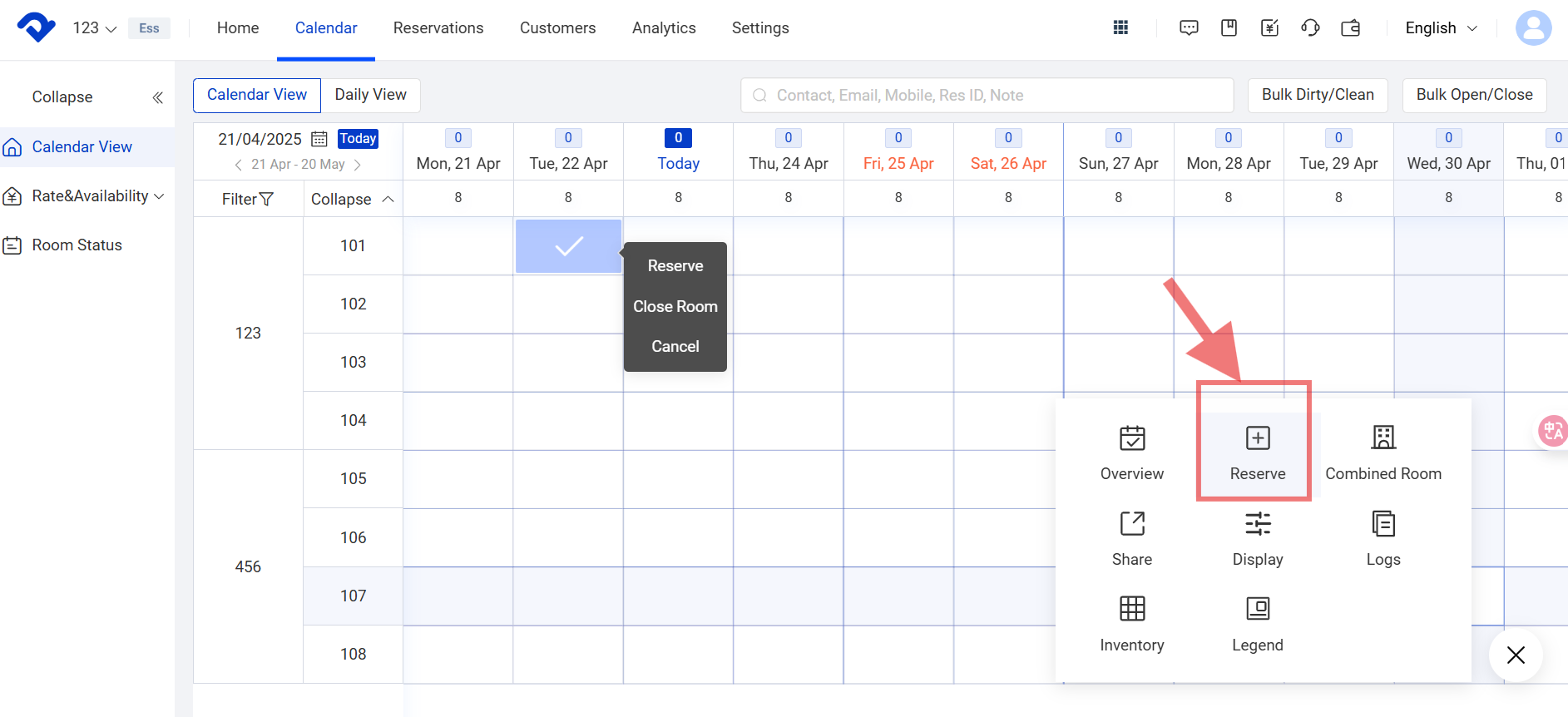
Way2: Click the Plus button in the bottom-right corner of the Calendar page. Select Reserve.
Plus button
Plus button-reserve

Once you finish filling in the Basic information and Accommodation, click Submit.
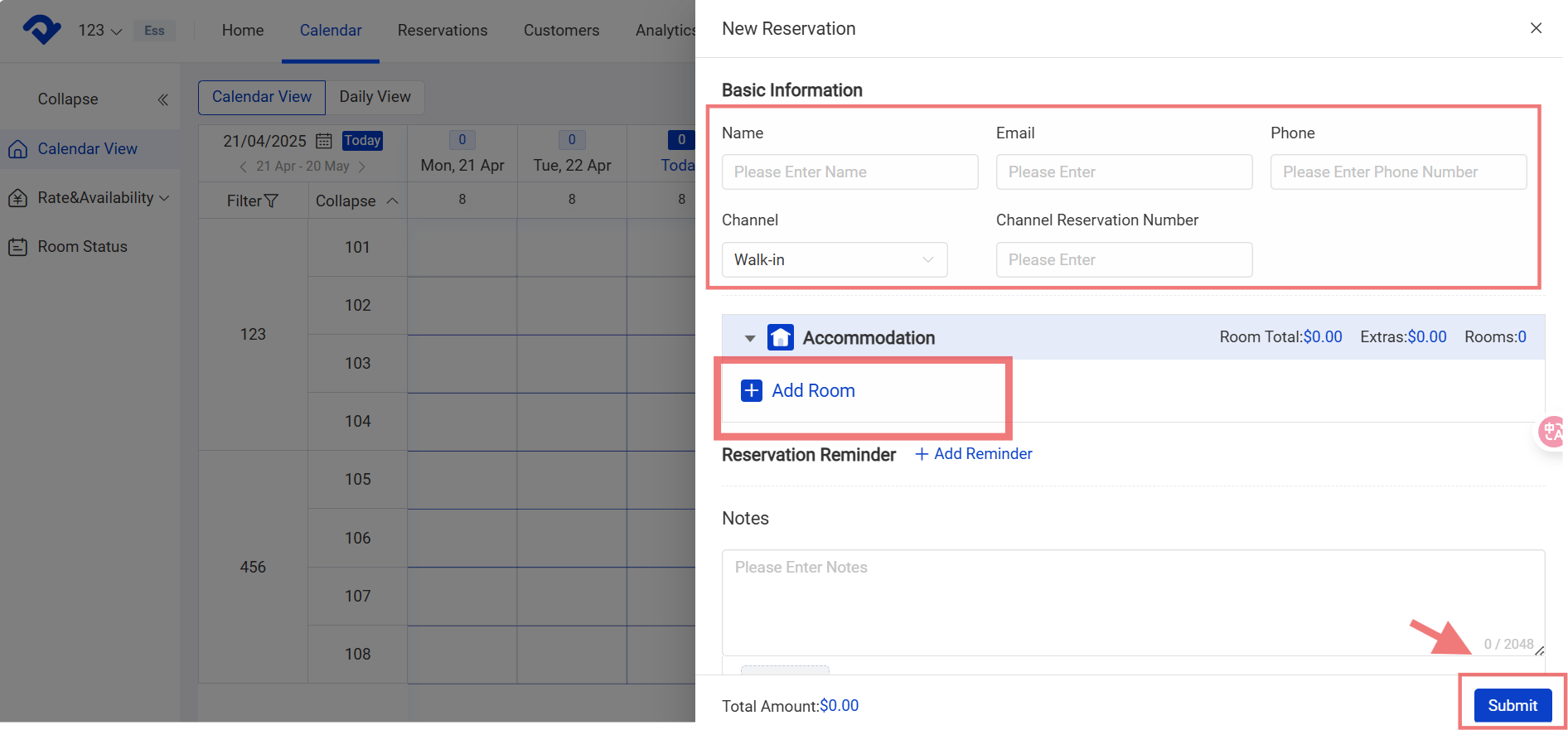
Submit

Create A New Combined Room Reservation:

Step1: Click the plus button in the bottom-right corner.
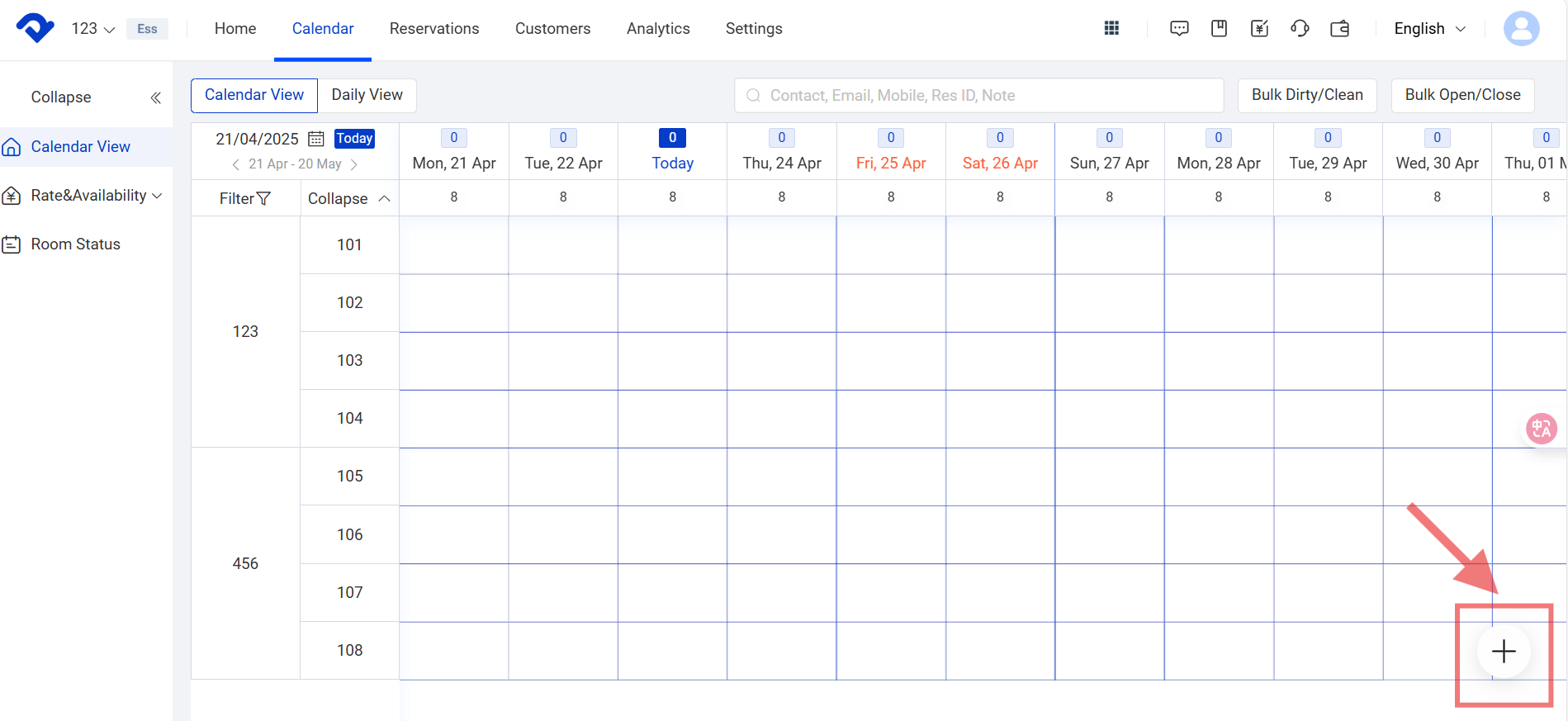
plus button

Step2: Click Combined Room. Fill in the Select Date and Select Combined Room in the Select Combined Room pop-up box. And then select Confirm.
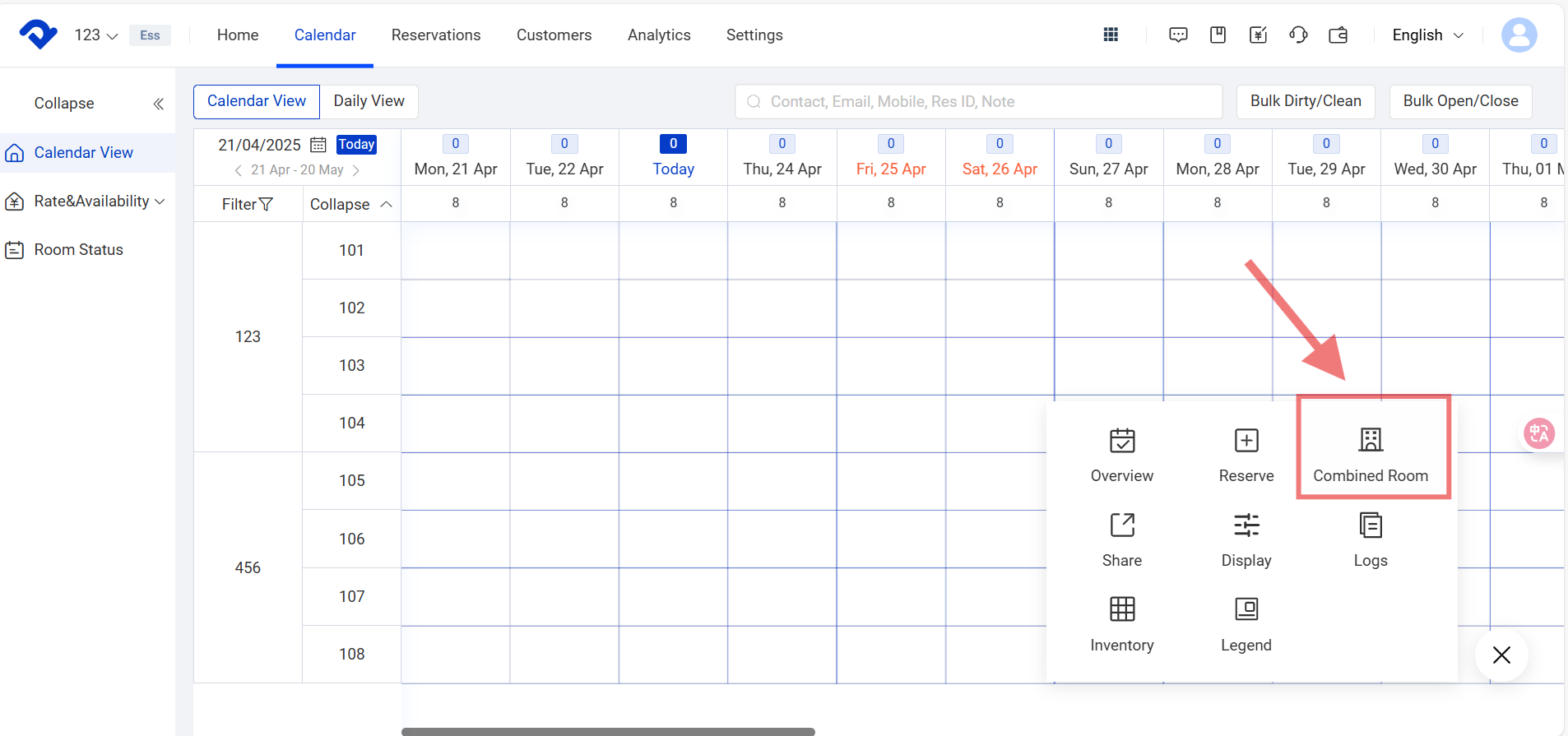
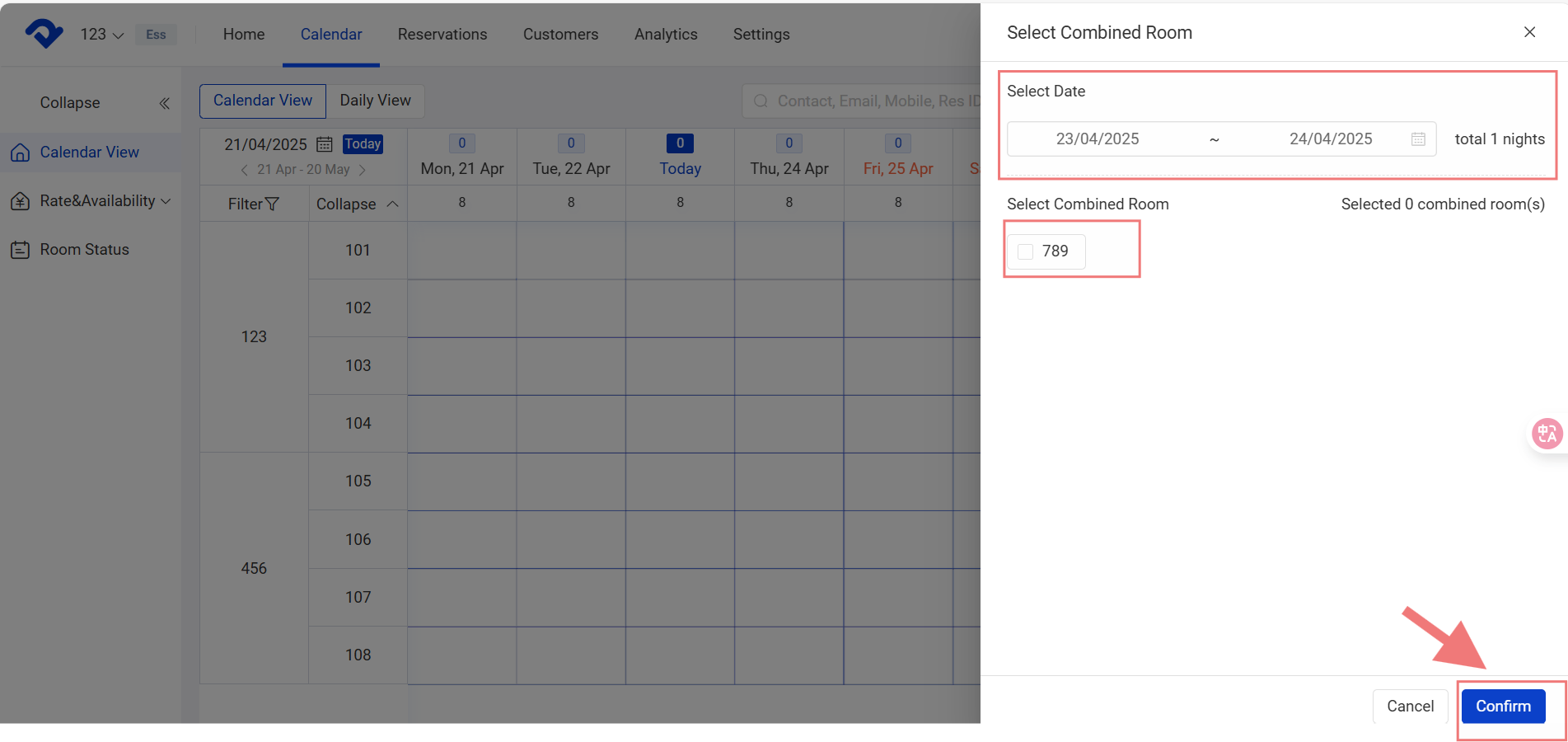
Combined Room
select date and select combined room

Step3: After filling in the Basic Information, click Submit.
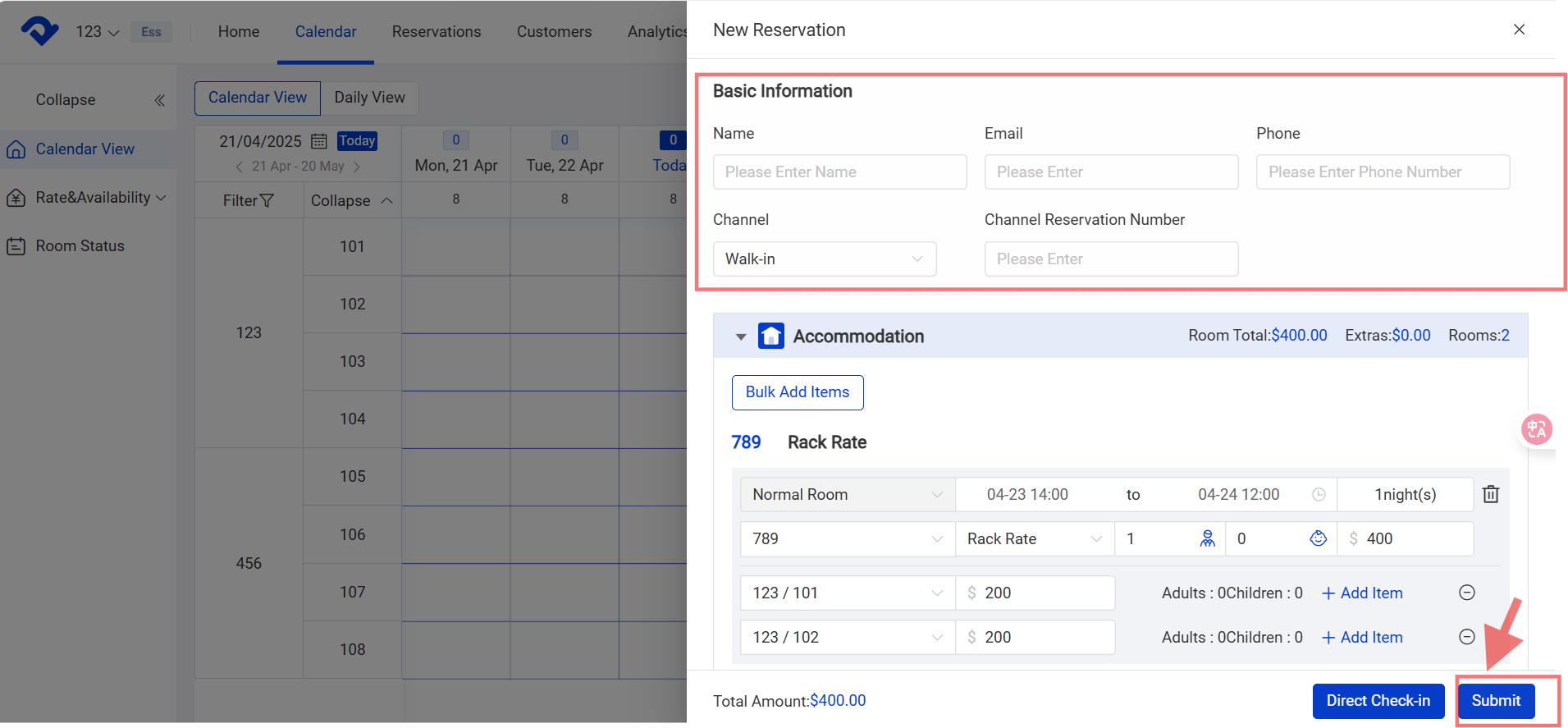
after filling in the Basic Information, click Submit

Note:

Only when there is a combined room type can you create a combined room reservation.

Edit the Reservation Details:

If you want to edit a reservation, you may go to the Calendar View on the Calendar page and modify it.

Step1: Go to the Calendar page and select Calendar View. Select the reservation.
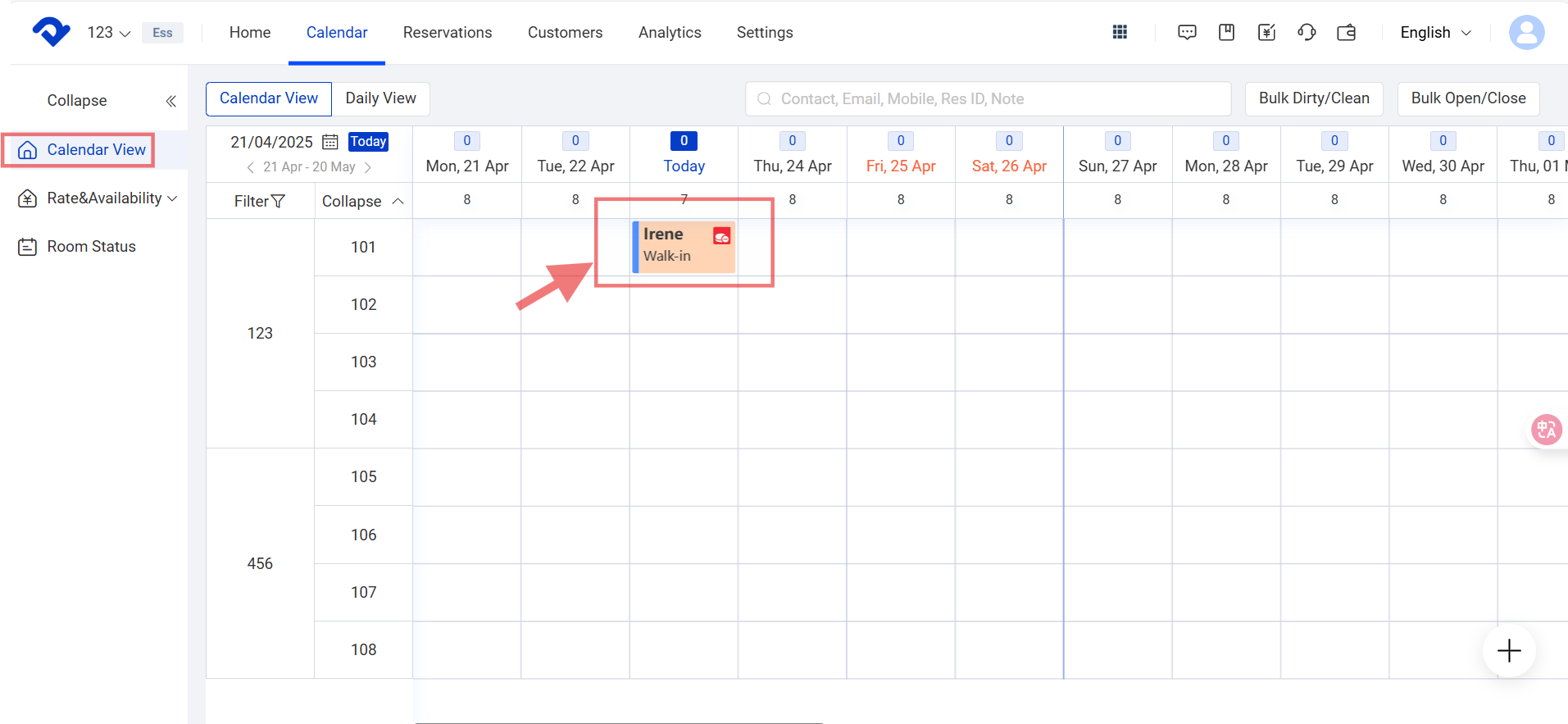
Calendar View

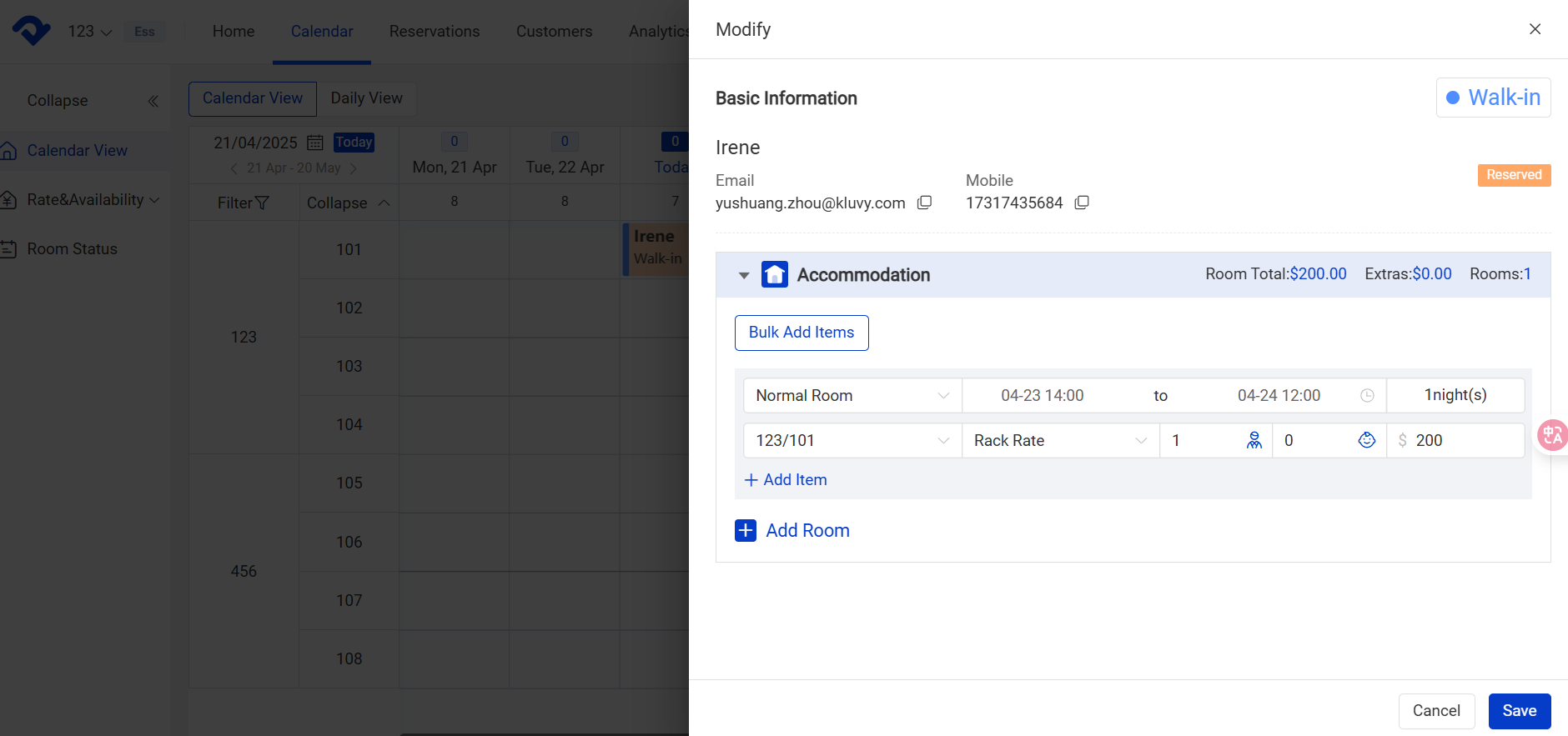
Step2: Select the pen button/ Modify in the Details page. After finishing editing the basic info or accommodation details in the Modify pop-up box, click Save.
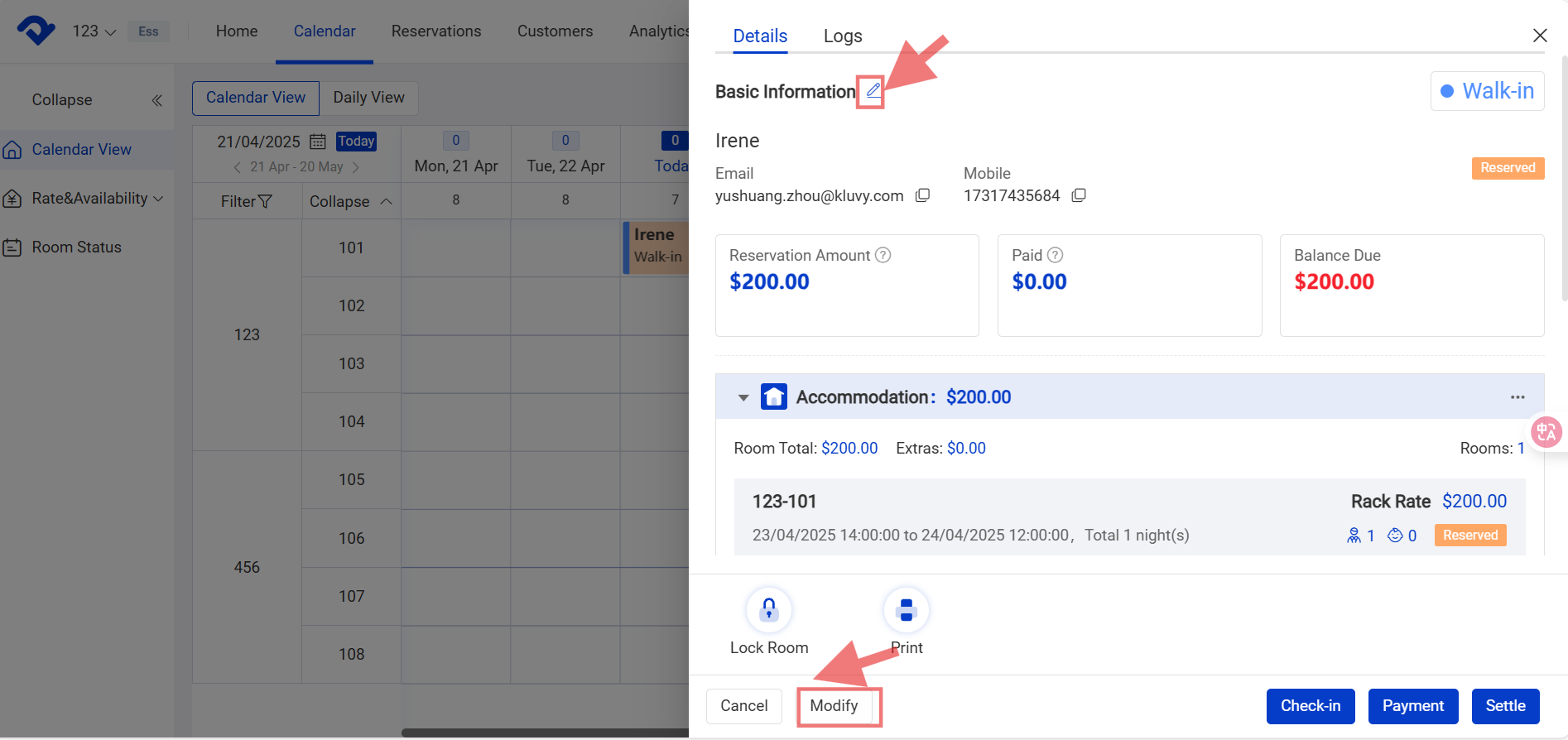
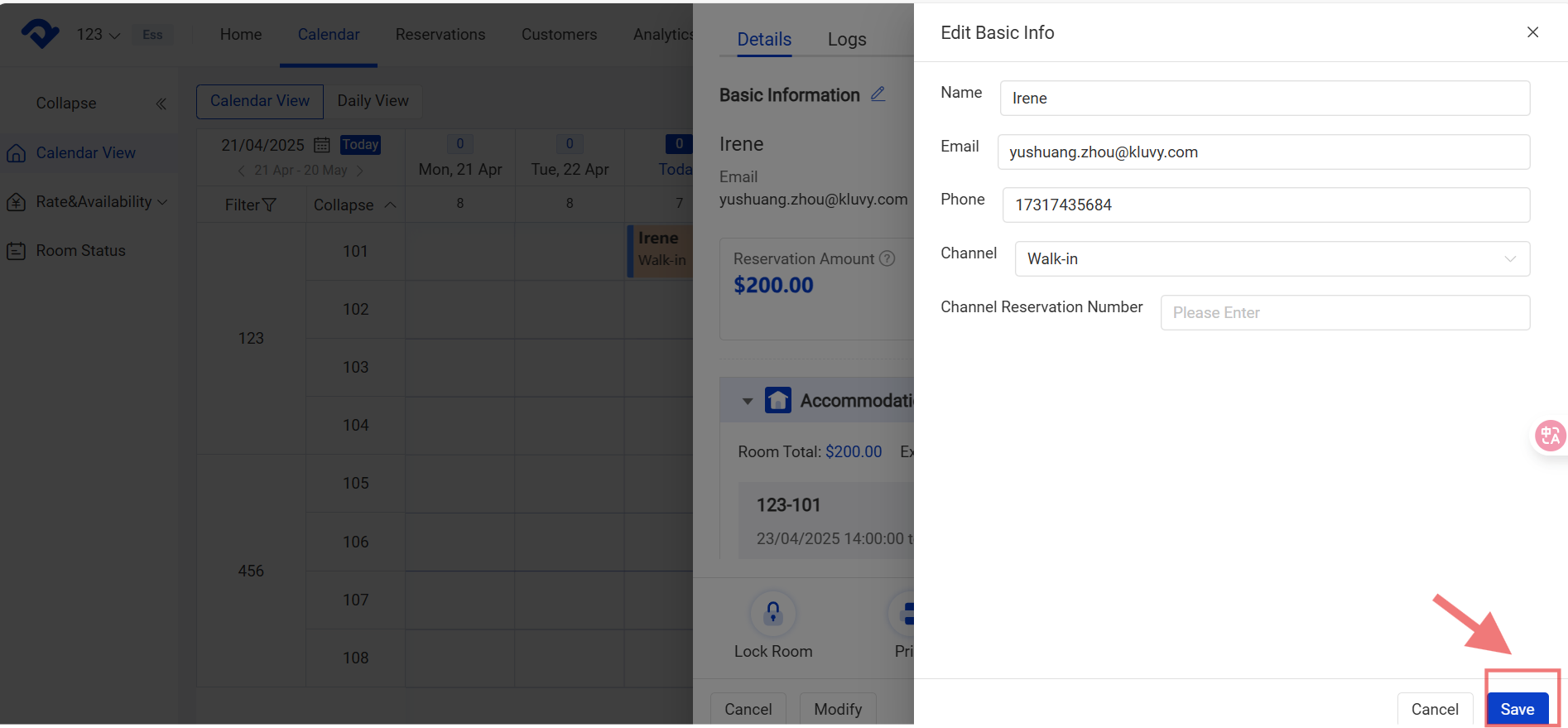
Modify in the Details page
save your basic info
save

Related Articles

Convert the Dirty Room to Clean Room

Overview Once the reservation has been settled, the room will be made dirty. After the housekeeping task has been completed, you need to convert the dirty room to a clean room. Steps in Calendar View to convert to a clean room: Go to the Calendar View and move to the

Add Reminder in a Reservation

No matter for a newly created reservation or a reserved one, the reminders help to take notes of the customer's needs. Steps on PC: Step for a newly created reservation: When you are creating the new reservation, you select Add Reminder. Fill in the Reminder Time, Reminder Content.

Reservation Box

Overview You can move the reservation to the Reservation Box manually when you have no room for the reserved one. The OTA reservations may also automatically enter the Reservation Box when there is no room at the confirmation. As for the reservations in the Reservation Box, you need to assign

Set up Calendar Display Settings

To satisfy your idea calendar view, you may set up the calendar display settings. You can set up the view by room type, room number, or group. You may view the daily calendar by Daily View settings. You may also change the color to display. Steps to Set up the

Settings of Sort, Group and Calendar View

Overview To manage the room assignment more flexibly, we support moving a room easily and setting up the rooms by group. To monitor the room status, we can operate it on Calendar View. Change the Order of A Room Type or Room: Step1: Go to the Settings page. Select Sort

Set Up An Hourly Room and Its Night Count

Overview We support hourly room set-up if you need it. The hourly room night count can be set at your convenience. Let's set up the proper design to match your preference. Set Up An Hourly Room: Step1: Go to the Settings page. Select Hourly Room from the